No single setting shapes the pojavlauncher experience as much as the renderer. It decides how the desktop graphics calls made by Minecraft: Java Edition reach the graphics chip inside your phone, and it directly influences frame rate, visual accuracy, shader compatibility and stability. This guide explains why renderers exist, describes each of the main options and offers practical recommendations for different devices and game versions.
Why pojavlauncher Needs a Renderer at All
Java Edition was written for desktop computers that support OpenGL, a long-established graphics interface. Phones and tablets do not support desktop OpenGL. Instead, they offer OpenGL ES, a slimmed-down variant designed for embedded hardware, and increasingly Vulkan, a modern low-level interface.
A renderer in pojavlauncher is a translation layer. It receives desktop OpenGL instructions from the game and converts them into something the mobile GPU understands. Because each layer takes a different approach, each has its own strengths, weaknesses and ideal use cases. Choosing well can mean the difference between a slideshow and smooth gameplay.
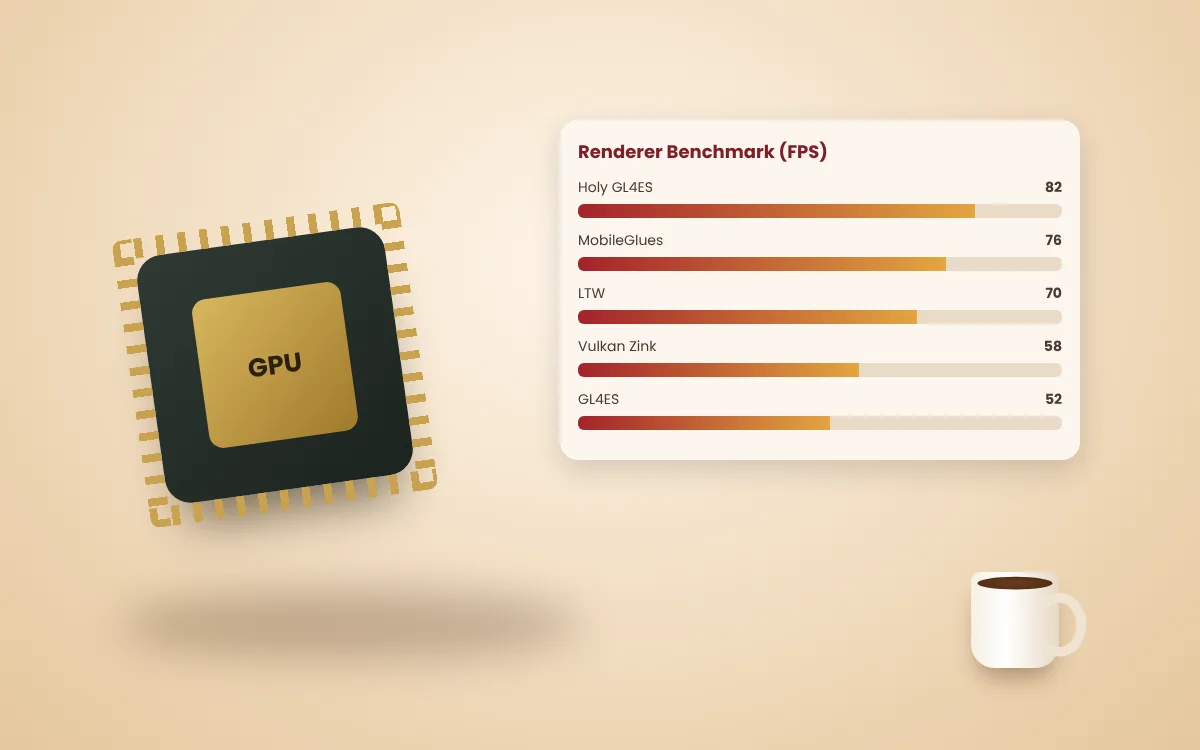
Holy GL4ES
GL4ES is the oldest and most widely tested translation layer used by pojavlauncher. It converts OpenGL 2.1 calls into OpenGL ES 2.0 or 3.0. Holy GL4ES is a refined build tuned specifically for Minecraft.
- Strengths: excellent stability, broad device compatibility and strong performance in versions up to 1.16.5. It is often the fastest option on older or budget hardware.
- Weaknesses: limited OpenGL support means some modern versions and many shader packs either fail or display graphical errors.
- Best for: 1.7.10, 1.8.9, 1.12.2 and 1.16.5, especially with mods such as OptiFine.
LTW
LTW is a newer translation layer that exposes a higher OpenGL level on top of OpenGL ES 3.x. Recent pojavlauncher releases bundle it with ANGLE support, which allows it to work on a wider range of drivers.
- Strengths: runs modern releases that require OpenGL 3.2 or above, handles Sodium well and supports many shader packs through Iris.
- Weaknesses: younger than GL4ES, so occasional visual glitches appear on certain drivers.
- Best for: 1.17 and newer on recent mid-range and flagship devices.
MobileGlues
MobileGlues is another modern layer that translates desktop OpenGL into OpenGL ES 3.2. Recent builds of pojavlauncher include version 2.0 as a built-in option.
- Strengths: strong compatibility with current releases, good shader support and competitive frame rates on Adreno and Mali chips.
- Weaknesses: requires a device with solid OpenGL ES 3.2 drivers; very old phones may not benefit.
- Best for: modern versions, particularly when LTW shows artefacts on your device.
Vulkan Zink
Zink is part of the Mesa graphics project. Rather than translating to OpenGL ES, it implements OpenGL on top of Vulkan. On devices with mature Vulkan drivers, this produces very accurate rendering.
- Strengths: high OpenGL compatibility, accurate visuals and good results with demanding modern versions.
- Weaknesses: performance depends heavily on the Vulkan driver, and some Mali GPUs need a legacy Zink build to avoid crashes.
- Best for: Snapdragon devices with Adreno 600-series GPUs and newer.
Freedreno and Turnip
Freedreno and Turnip are open-source drivers for Qualcomm Adreno GPUs. Turnip provides Vulkan, and it can be combined with Zink for an entirely open-source graphics stack. Recent pojavlauncher releases extend Turnip support to more Adreno models and add a Freedreno renderer option.
On compatible Snapdragon phones, this combination can deliver steadier frame pacing than the manufacturer's driver, especially in chunk-heavy scenes. On unsupported chips it will not load, so treat it as an advanced option for owners of recent Snapdragon devices.
Quick Recommendation Table
| Situation | First choice | Alternative |
|---|---|---|
| Versions 1.12.2 and older | Holy GL4ES | GL4ES |
| Version 1.16.5 | Holy GL4ES | LTW |
| Version 1.17 and newer | LTW or MobileGlues | Vulkan Zink |
| Shader packs with Iris | MobileGlues | LTW |
| Snapdragon flagship | Zink with Turnip | LTW |
| Mali GPU (Exynos, Dimensity) | MobileGlues | Legacy Zink |
How to Change the Renderer
- Open pojavlauncher and select the profile you want to adjust.
- Open the profile editor.
- Choose a renderer from the renderer list.
- Save the profile and launch the game.
Because the renderer is stored per profile, you can keep Holy GL4ES for an older modpack and LTW for the latest release without switching manually each time. If you have not yet created profiles, our guide on installing pojavlauncher on Android explains how.
Testing Renderers Methodically
Results vary so much between devices that personal testing beats any general advice. A methodical approach saves time.
- Create a test world and note a fixed location, such as spawn.
- Set render distance to 8 chunks and keep other settings identical.
- Open the debug screen to read the frame rate. On touch controls, assign a button to F3 in the control editor.
- Stand still for thirty seconds, then walk in a straight line for thirty seconds, noting the average and lowest frame rates.
- Repeat with each renderer and keep the one that offers the best balance of speed and stability.
Renderers and Performance Mods
Renderers and mods work together. Sodium, for example, replaces much of Minecraft's rendering engine with a far more efficient one, but it requires a renderer with adequate OpenGL support. Pairing Sodium with LTW or MobileGlues on a modern version often produces the largest improvement available. On older versions, OptiFine paired with Holy GL4ES remains a strong combination. Our guide to installing Fabric and Forge on pojavlauncher explains how to add these mods.
Recognising Renderer Problems
- Black or white screen after loading: the renderer does not support the version. Switch to another.
- Missing textures or flickering terrain: often a driver quirk. Try MobileGlues or LTW instead of Zink, or the reverse.
- Crash with a graphics error in the log: check the latest log file in the game folder; it usually names the renderer and the failing call.
- Severe stuttering every few seconds: this is more often a memory issue than a renderer issue. Our guide to RAM allocation explains how to resolve it.
Battery and Heat Considerations
Renderers also affect power consumption. A renderer that pushes very high frame rates will drain the battery quickly and heat the device, which can lead to thermal throttling and lower performance over a long session. Capping the frame rate at 60 or even 45 frames per second in video settings keeps the device cooler and the experience steadier. Further advice on balancing speed and heat appears in our article on fixing lag and low FPS.
Renderer Choice by Game Version in Practice
It helps to think about renderers in terms of the OpenGL level each game version expects. Versions up to 1.16.5 were written for OpenGL 2.1, which GL4ES translates very efficiently. From 1.17 onwards, Minecraft requires OpenGL 3.2 core profile features, which is why older layers struggle and why LTW, MobileGlues and Zink were developed. If you are unsure which renderer to start with, let the version number guide you before you consider the device.
Modpacks add another layer of complexity. A large Forge pack on 1.12.2 may run best on Holy GL4ES even on a flagship phone, simply because that renderer has years of testing behind it on that version. A modern Fabric pack on 1.20.1, on the other hand, will usually perform better on MobileGlues or LTW, particularly if it includes Sodium or Iris. Keeping separate profiles for each pack, each with its own renderer, avoids constant switching.
Keeping Renderers Up to Date
Renderers improve with each pojavlauncher release. Recent builds have updated Mesa to version 26.2, added a Freedreno option, extended Turnip support to more Adreno GPUs and built MobileGlues 2.0 directly into the launcher. A renderer that failed on your device a few months ago may work perfectly today. When you update the launcher, it is worth repeating a short benchmark with each renderer, because the best option for your device can change between releases.
Finally, remember that the renderer cannot overcome every hardware limit. A budget device with an entry-level GPU will not run modern versions with shaders at high frame rates, however carefully the renderer is chosen. In that situation, an older game version with Holy GL4ES and OptiFine often provides a far more satisfying experience than struggling with the newest release.
Conclusion
The best pojavlauncher renderer depends on your device and the version you play. Holy GL4ES remains the reliable foundation for older versions; LTW and MobileGlues unlock modern releases and shaders; and Zink, especially with Turnip on Snapdragon hardware, offers accurate rendering for demanding scenes. Treat the renderer as a per-profile setting, test each candidate under the same conditions, and pair your choice with a suitable performance mod. A few minutes of testing will reward you with noticeably smoother play.