
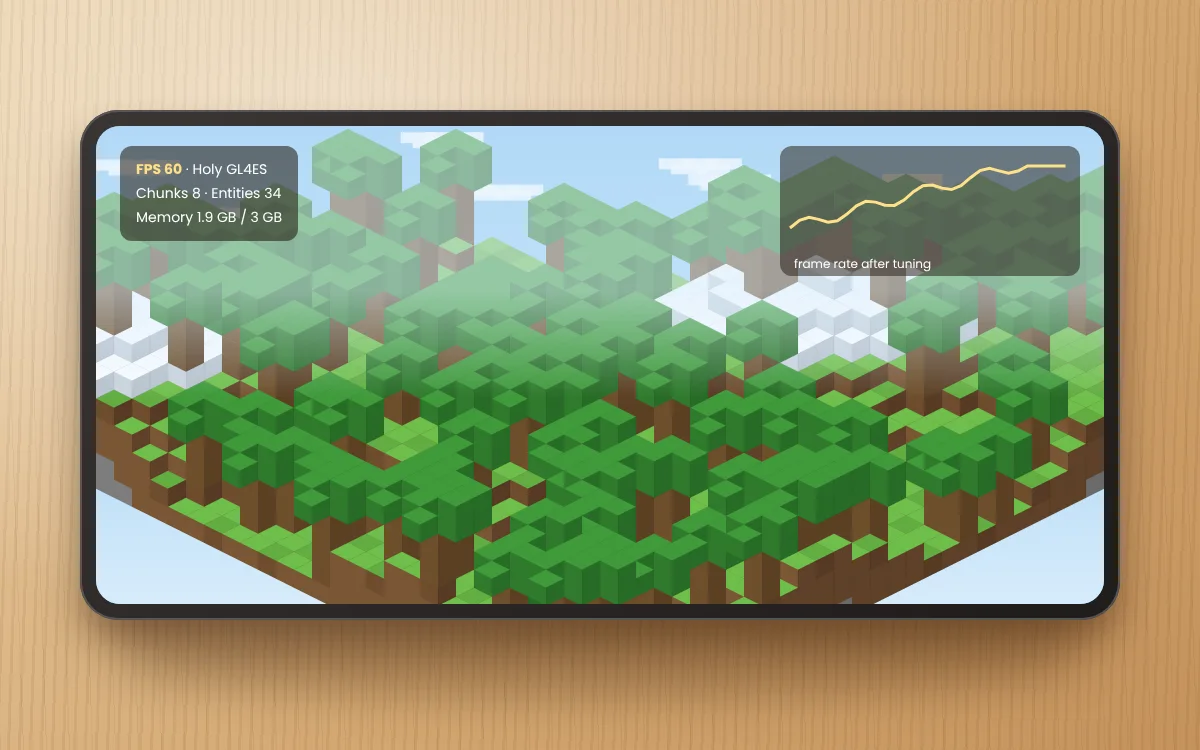
Low frame rates and stuttering are the most common complaints from players running Java Edition through pojavlauncher. The good news is that most performance problems have identifiable causes and practical solutions. This guide works through every layer that affects performance, from in-game video settings and renderer choice to memory, mods, thermal throttling and Android system settings, so that you can diagnose your own situation and apply the fixes that matter most.
Understanding Where Lag Comes From
"Lag" describes several different problems, and each has a different cure.
- Low frame rate means the graphics pipeline cannot draw frames quickly enough. The game feels sluggish all the time.
- Stuttering means brief freezes at intervals, often caused by memory pressure or chunk loading.
- Server lag means delayed responses from a multiplayer server; blocks reappear after being broken and mobs jump around. This is a network or server issue rather than a device issue.
- Thermal slowdown means performance starts well and gradually declines as the device heats up.
Open the debug screen with F3 to read the frame rate and memory usage before making changes. If you have not mapped F3 to a touch button, our guide to pojavlauncher custom controls explains how.
Step 1: Adjust In-Game Video Settings
Video settings offer the quickest gains. These changes have the largest effect on mobile hardware:
- Render distance: 6 to 8 chunks is a sensible range for most phones. Each additional chunk increases the terrain drawn considerably.
- Simulation distance: on 1.18 and later, set this to 5 or 6 chunks to reduce the number of entities and blocks processed.
- Graphics: choose Fast rather than Fancy or Fabulous.
- Smooth lighting: turn it off or set it to minimum.
- Clouds: off or Fast.
- Particles: Decreased or Minimal.
- Entity shadows: off.
- Max frame rate: cap it at 60, or 45 on older devices, to reduce heat.
- Biome blend: lower it to 1x1 or off.
Step 2: Choose the Right Renderer
The renderer translates desktop graphics calls for your phone's GPU, and the wrong choice can halve your frame rate. As a general guide, Holy GL4ES suits versions up to 1.16.5, while LTW and MobileGlues suit modern versions. On Snapdragon devices, Zink with the Turnip driver can provide excellent results. Our detailed comparison of the best pojavlauncher renderer explains how to test each option methodically.
Step 3: Install Performance Mods
Performance mods often deliver bigger improvements than any setting. A Fabric profile with the following mods is the single most effective change for most players:
- Sodium rewrites the rendering engine and can double or triple frame rates.
- Lithium optimises game logic, reducing the work done each tick.
- FerriteCore reduces memory usage, which reduces stuttering.
- EntityCulling skips drawing entities hidden behind walls.
- ImmediatelyFast speeds up text, interface and entity rendering.
On older versions such as 1.8.9 and 1.12.2, OptiFine remains a strong option. Our guide to installing Fabric and Forge on pojavlauncher walks through adding these mods.
Step 4: Balance Memory Allocation
Regular stutters every few seconds are typically caused by the garbage collector struggling with a heap that is too small. Sudden closures without an error, on the other hand, suggest that too much memory has been allocated and Android is closing the app. Our guide to pojavlauncher RAM allocation includes a table of recommended values by device.
Step 5: Manage Heat and Throttling
Mobile processors reduce their speed when they become hot, to protect the hardware. A device that runs at 60 frames per second for five minutes and then drops to 30 is almost certainly throttling.
- Cap the frame rate at 45 or 60 to reduce sustained load.
- Remove thick cases during long sessions to improve heat dissipation.
- Avoid playing while charging, which adds heat from the battery.
- Play in a cool room and away from direct sunlight.
- Lower screen brightness slightly, which reduces overall power draw.
A small clip-on phone cooler can make a remarkable difference for players who enjoy long sessions.
Step 6: Optimise Android Settings
- Disable battery saver while playing. Battery-saving modes limit processor speed.
- Enable performance or game mode if your manufacturer offers one, such as Game Booster on Samsung devices or Game Turbo on Xiaomi phones.
- Exclude pojavlauncher from battery optimisation in the app's battery settings, so that Android does not restrict it.
- Close background apps before launching to free memory and processor time.
- Lower display refresh rate to 60 Hz if your device supports 90 Hz or 120 Hz; this reduces load and heat without affecting a game capped at 60 frames per second.
Step 7: Choose a Suitable Game Version
Newer versions of Minecraft are more demanding. Version 1.18 introduced taller worlds and new terrain generation, which increased requirements substantially. If your device is several years old or has 4 GB of RAM or less, versions such as 1.12.2 or 1.16.5 provide far smoother gameplay. Many players keep separate profiles for an older version with OptiFine and a modern version with Sodium.
Step 8: Reduce Resource Pack Load
High-resolution resource packs multiply the memory and bandwidth needed for textures. A 16x pack is ideal for mobile play. If you enjoy a particular style, look for a 16x or 32x edition of your favourite pack.
Step 9: Address Server Lag Separately
If the frame rate is healthy but blocks reappear and mobs move erratically, the problem lies with the network or the server.
- Switch from mobile data to a stable Wi-Fi connection.
- Choose servers geographically close to you.
- Check the ping in the player list; values above 150 ms will feel delayed.
- Avoid large downloads on the same network while playing.
Diagnosing With the Debug Screen
The debug screen offers clear evidence for your decisions. The frame rate appears in the top left corner, memory usage in the top right, and the renderer name appears in the graphics section. Compare figures before and after each change. If a change does not improve the numbers, revert it and try the next one. Making one change at a time is slower but far more informative.
A Quick Performance Checklist
- Render distance 6–8, simulation distance 5–6, graphics Fast.
- Correct renderer for your version and GPU.
- Sodium, Lithium and FerriteCore on a Fabric profile.
- Memory allocated at roughly half of device RAM, capped sensibly.
- Frame rate capped at 60 or 45.
- Battery saver off, game mode on, background apps closed.
- 16x resource pack and moderate brightness.
Profiles for Different Situations
One of the most effective habits is to maintain more than one performance profile. A "travel" profile might use a lower render distance, a frame rate cap of 45 and minimal particles to preserve battery life on long journeys. A "home" profile, used while the device rests on a stand with good airflow, can raise render distance and frame rate because heat is easier to manage. Switching profiles takes seconds and saves adjusting a dozen video settings each time your circumstances change.
Servers deserve their own consideration too. Busy multiplayer hubs contain many players, entities and particle effects, which demand more from both the processor and the graphics chip than a quiet single-player world. Lowering entity distance and turning off entity shadows is particularly helpful on such servers, and a slightly lower render distance than you use in single-player keeps frame rates steady in crowded areas.
When to Consider an Older Version
Sometimes the most honest advice is that a device is not suited to the newest release. If you have applied every fix in this guide and the latest version still struggles, try 1.16.5 or 1.12.2 with OptiFine. These versions have a lighter rendering pipeline and smaller memory footprint, and they still offer a vast range of mods, maps and servers. Many experienced mobile players keep an older version as their everyday profile and reserve the latest release for occasional exploration.
Monitoring Temperature and Battery
Many Android devices show battery temperature in their device care or battery settings, and several free apps display processor temperature in real time. Keeping an eye on these figures during your first few sessions helps you understand how quickly your device heats up and at which point performance begins to fall. Once you know that pattern, you can choose a frame rate cap and render distance that keep the device comfortably within its limits for the length of session you usually play.
Conclusion
Fixing lag in pojavlauncher is rarely about a single setting. It is about combining sensible video options, the right renderer, effective performance mods, balanced memory and attention to heat. Work through the steps in order, measure with the debug screen and keep the changes that help. Most devices from the past few years can deliver a stable and enjoyable Java Edition experience once these layers are tuned together, and for an even more comfortable session, consider pairing your tuned setup with a keyboard and mouse.