Playing a desktop game on a touchscreen is only comfortable when the controls fit your hands, your screen and the way you play. pojavlauncher includes a capable control editor that lets you rearrange, resize and create on-screen buttons, adjust sensitivity and map any keyboard key or mouse action to a touch input. This guide explains the default layout, walks through the editor in detail and offers proven layouts for survival, building, combat and redstone work.
The Default Touch Layout
When you first launch a version, pojavlauncher displays a standard layout designed to cover the essentials:
- A directional pad on the left for walking forwards, backwards and sideways.
- Jump and sneak buttons on the right.
- Buttons for the inventory, chat, the pause menu and the hotbar slots.
- Camera movement by dragging anywhere on the free area of the screen.
- Attack and place actions mapped to short and long touches on the game world.
This layout is functional, but it is designed to suit as many screens as possible, which means it suits none perfectly. A few minutes of customisation brings a substantial improvement.
Opening the Control Editor
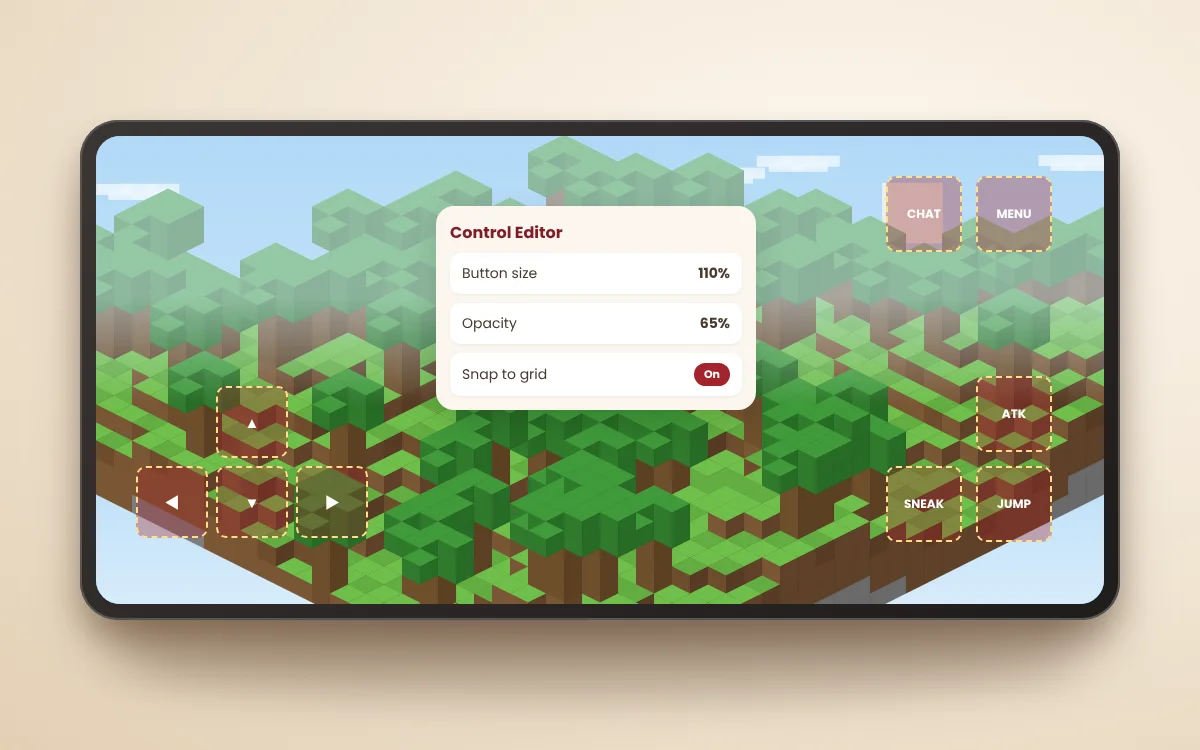
You can edit controls from the launcher settings or directly in game through the pojavlauncher side menu. Editing in game is often more practical, because you can see the world behind your buttons and judge placement accurately. Once in editing mode, buttons show dashed outlines and can be moved freely.
Moving and Resizing Buttons
Drag any button to reposition it. When the editor's snapping option is enabled, buttons align to a grid, which keeps layouts tidy. Each button's properties panel provides precise controls for:
- Size: width and height, either together or separately.
- Opacity: how visible the button is over the game world.
- Corner radius: from square to fully round.
- Colour and border: useful for distinguishing groups of buttons.
- Label: the text or symbol displayed on the button.
A useful principle is to make frequently used buttons larger and place them where your thumbs rest naturally, while moving rarely used functions to the edges of the screen.
Adding New Buttons
Each new button can be mapped to one or more keyboard keys, mouse buttons or special actions. Mapping multiple keys to one button allows combinations, such as Shift and a number key, or the F3 key combinations used for debugging. Recent versions also offer a global opacity setting for the entire control map, which saves adjusting buttons one by one.
Helpful additions for most players include:
- F3 for the debug screen, essential for checking frame rate and memory. Our guide to RAM allocation explains what to look for.
- F5 to switch camera perspective.
- Q to drop items.
- F to swap items between hands.
- Tab to view the player list on servers.
- Ctrl for sprinting, if you prefer a dedicated sprint button.
Toggle Buttons and Hold Buttons
Buttons can behave in two ways. A standard button stays pressed only while your finger rests on it. A toggle button stays active after the first touch until you touch it again. Toggles are ideal for sneaking along edges, sprinting across long distances and holding the attack key while mining. Using toggles reduces finger strain considerably during long sessions.
Swipeable Buttons and the Virtual Joystick
Swipeable buttons register a press as your finger slides onto them, rather than requiring a fresh touch. This makes the directional pad far smoother, because you can glide from forwards to diagonal movement without lifting your thumb. Some players prefer a virtual joystick for movement; recent builds offer joystick-style controls that many find more natural on larger screens.
Camera Sensitivity and Gestures
Camera sensitivity is configured in the launcher's control settings, separately from the in-game mouse sensitivity. If the camera feels sluggish or overly twitchy, adjust both: the launcher setting changes how touch movement translates into mouse movement, while the in-game setting changes how the game interprets that movement. Most players settle on a moderate launcher value and fine-tune with the in-game slider.
You can also adjust the delay that distinguishes a quick touch (attack or break) from a long press (use or place). Lowering this delay speeds up building; raising it prevents accidental block placement.
Recommended Layouts
Survival layout
Keep the directional pad large and slightly transparent on the left. Place jump at the bottom right, with sneak just above it. Add a toggle sprint button near the directional pad and an inventory button at the top right. Put hotbar selection within reach of your right thumb.
Building layout
Builders benefit from a dedicated "pick block" button (middle mouse), a toggle for sneaking so that blocks can be placed at edges safely, and a quick F5 button for checking work from third person. Lower the long-press delay to speed up placement.
Combat layout
For combat on servers, place an attack button under the right thumb rather than relying on touches on the game world, and position jump so that you can press it alongside attack for critical hits. A shield or off-hand button mapped to the right mouse button helps significantly in player-versus-player encounters.
Redstone and technical layout
Technical players often add F3 combinations, such as F3 + B for hitboxes and F3 + G for chunk borders, along with buttons for commands and chat. Smaller, semi-transparent buttons leave more of the screen visible for careful work.
Saving, Sharing and Switching Layouts
pojavlauncher stores control layouts as files in its controlmap folder. You can save several layouts, switch between them for different activities and share them with friends. Backing up your favourite layout before updating the launcher is a sensible precaution.
Controllers and Physical Input
For long sessions, many players eventually move beyond touch. pojavlauncher supports Bluetooth and USB keyboards, mice and game controllers. With a mouse connected, the launcher captures the pointer for camera movement, much as a desktop game does. Our dedicated guide to using a keyboard and mouse with pojavlauncher explains setup and common issues.
Troubleshooting Control Problems
- Buttons do not respond: check that the button is mapped to a key and that no transparent button sits on top of it.
- The camera moves when pressing buttons: enlarge the button slightly so your touch lands fully inside it.
- Layout looks wrong on a new device: layouts are scaled to screen size, but very different aspect ratios may need minor adjustment.
- Accidental placements: increase the long-press delay in the control settings.
Controls and Performance
Smooth controls depend on a stable frame rate. If the camera feels unresponsive, the cause may be low frame rate rather than sensitivity. Our guides to fixing lag and low FPS and choosing the best renderer help ensure that your carefully tuned controls feel as responsive as they should.
Layouts for Different Screen Sizes
A layout that feels perfect on a large tablet can feel cramped on a compact phone, and the reverse is also true. On phones with screens under 6.5 inches, keep the number of visible buttons to a minimum and rely on toggles to reduce the need for simultaneous presses. On tablets, you have room for a fuller set of function keys, but avoid placing buttons in the centre of the screen, where they obstruct your view of the world.
Foldable devices deserve special attention, as their aspect ratio changes between folded and unfolded states. Creating a separate layout for each state, and switching between them as needed, produces a far better experience than a single compromise layout.
Accessibility Considerations
The control editor is also a useful accessibility tool. Players with limited dexterity can enlarge buttons substantially, replace held actions with toggles and position every control within reach of a single hand. Higher opacity and distinct colours make buttons easier to locate, while a longer long-press delay helps prevent unintended actions. These adjustments make Java Edition accessible to players who might find standard touch controls difficult.
Practising With a New Layout
Any new layout feels unfamiliar for the first few sessions. Spend a little time in a creative world practising movement, jumping, building and opening menus before taking the layout into a demanding survival world or onto a server. Small adjustments made during this practice period, such as nudging a button a few millimetres closer to your thumb, often make the difference between a layout that feels awkward and one that becomes second nature.
Conclusion
Custom controls turn pojavlauncher from a clever novelty into a comfortable way to play Java Edition. Resize the buttons you use most, move them to where your thumbs rest, use toggles for sneaking and sprinting, and add the function keys that matter for your style of play. Save separate layouts for survival, building and combat, keep a backup, and revisit sensitivity once you are settled. The result is a control scheme that feels deliberate and natural rather than cramped.