
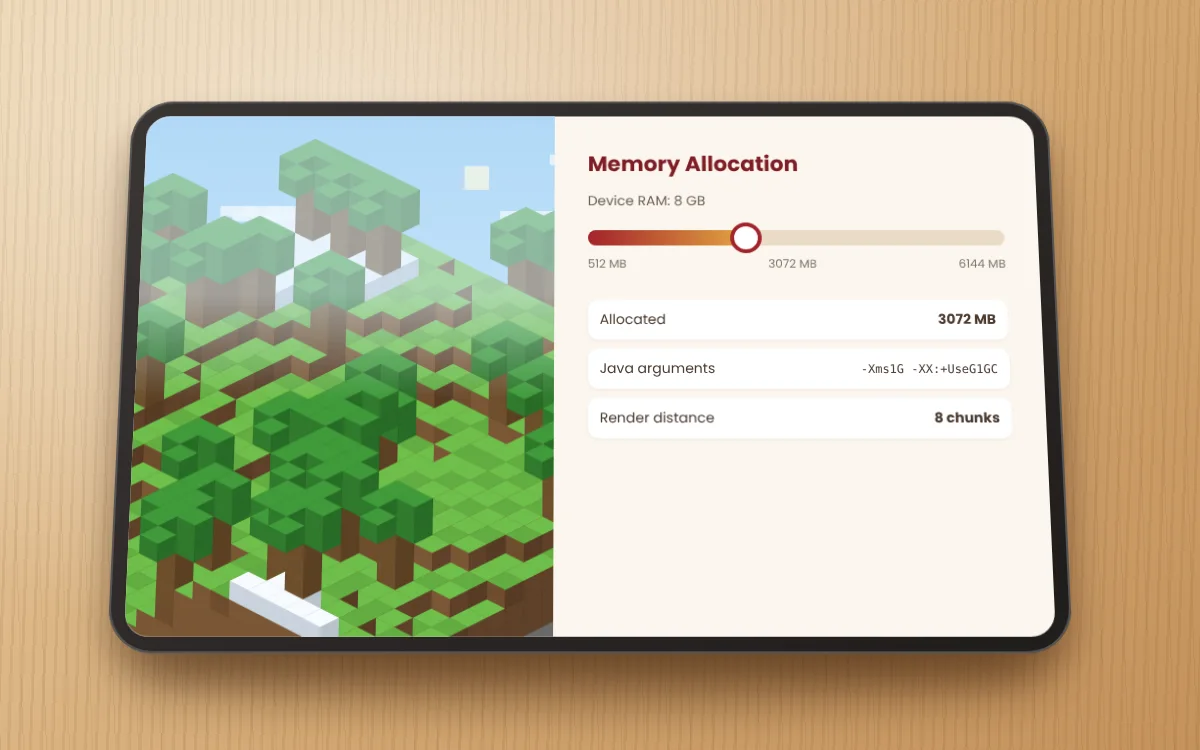
Memory allocation is the setting most closely linked to crashes, freezes and sudden stutters in pojavlauncher. Minecraft: Java Edition runs inside a Java Virtual Machine, and that virtual machine can only use the amount of memory you give it. Allocate too little and the game runs out of room while loading the world; allocate too much and Android itself steps in to close the app. This guide explains how memory works in pojavlauncher, offers recommended figures for common devices and shows how to diagnose memory problems with confidence.
How Memory Works in pojavlauncher
When pojavlauncher starts the game, it launches a Java runtime with a fixed maximum heap size. The heap is where Java stores the objects the game creates: loaded chunks, entities, textures waiting to be uploaded, mod data and much more. The memory slider in the launcher settings controls the size of this heap.
The heap is not the only memory the game uses. The Java runtime needs additional memory for its own code, the renderer allocates graphics buffers, and Android reserves memory for the system and other apps. That is why allocating the entirety of your phone's RAM to Java is never a good idea.
Why Android Closes the Game
Android manages memory aggressively. When the system runs low, its low-memory killer closes apps, starting with those it judges least important. A game using a very large heap becomes an obvious target, particularly when it is in the background or when another app demands memory. The result is a sudden return to the home screen with no error message.
This behaviour explains a common paradox: raising the memory slider can make crashes more frequent rather than less, because the system has less room to breathe.
Recommended Allocation by Device
| Device RAM | Vanilla play | Light mods | Large modpacks |
|---|---|---|---|
| 3 GB | 1.0–1.2 GB | Not advised | Not advised |
| 4 GB | 1.5–1.8 GB | 1.8 GB | Not advised |
| 6 GB | 2.0–2.5 GB | 2.5–3.0 GB | 3.0 GB |
| 8 GB | 2.5–3.0 GB | 3.0–3.5 GB | 3.5–4.0 GB |
| 12 GB or more | 3.0 GB | 4.0 GB | 4.5–6.0 GB |
These figures assume that other heavy apps are closed. Devices with aggressive manufacturer skins, such as some versions of MIUI or One UI, may need slightly lower values.
How to Change the Memory Allocation
- Open pojavlauncher and go to the settings menu.
- Find the memory allocation slider in the Java or game settings section.
- Move the slider to your chosen value. The launcher shows your device's total memory alongside it.
- Return to the main screen and launch the game. The new value applies from the next launch.
Signs That You Need More Memory
- The game crashes during world loading with an OutOfMemoryError in the log.
- Frame rate collapses for a second or two at regular intervals, which indicates the garbage collector working hard to free space.
- The debug screen shows memory usage repeatedly approaching 100 per cent.
- Large modpacks fail during the loading screen, usually at the stage where mods register their content.
Signs That You Have Allocated Too Much
- The app closes suddenly without any error, returning you to the home screen.
- Switching to another app and back causes the game to restart.
- The entire phone becomes sluggish while the game runs.
If you see these symptoms, reduce the allocation by 512 MB at a time until the game runs consistently.
Reading the Debug Screen
Minecraft's debug screen, opened with F3, displays memory usage in the top right corner. It shows the percentage of the heap in use, the amount used and the maximum. On touch controls, assign a button to F3 in the control editor; our guide to pojavlauncher custom controls explains how.
Healthy memory usage rises steadily and then drops sharply when the garbage collector runs. If the drop leaves usage above 80 per cent, the heap is too small for your current settings. If usage rarely exceeds 50 per cent, you could safely allocate less and give Android more room.
Reducing Memory Demand
Allocating more memory is only half the solution. Reducing what the game needs is often more effective on mobile hardware.
- Lower render distance. Each extra chunk of render distance increases loaded terrain substantially. Moving from 12 to 8 chunks can save hundreds of megabytes.
- Use FerriteCore. This Fabric and Forge mod reduces the memory used by block states and models, often by a third or more.
- Use smaller resource packs. A 16x pack uses a fraction of the memory of a 64x or 128x pack.
- Trim mod lists. Each content mod adds registries, textures and models. Keep only the mods you actually use.
- Close background apps before launching, particularly browsers and social apps.
Our article on installing Fabric and Forge on pojavlauncher explains how to add memory-saving mods such as FerriteCore.
Java Arguments for Advanced Users
pojavlauncher allows custom Java arguments in the profile or launcher settings. Most players never need them, but a few can help on capable devices.
-XX:+UseG1GCselects the G1 garbage collector, which handles large heaps with shorter pauses. Recent Java versions use it by default.-XX:MaxGCPauseMillis=50asks the collector to aim for shorter pauses, which can smooth out stutters.-Xmssets the starting heap size. Setting it equal to the maximum avoids gradual heap expansion but reserves memory immediately, which may provoke Android's memory management.
Change one argument at a time and test each change, so that you can identify which adjustment helped or harmed.
Memory and Version Choice
Newer versions of Minecraft demand more memory than older ones. World generation changes in 1.18, larger worlds and new rendering pipelines all increase requirements. If your device has 4 GB of RAM or less, versions such as 1.12.2 or 1.16.5 offer a far smoother experience than the latest release. Owners of 8 GB or 12 GB devices can play current versions comfortably, especially with performance mods.
When Memory Is Not the Problem
Not every crash is a memory crash. A black screen on launch usually indicates a renderer problem, explained in our guide to the best pojavlauncher renderer. Consistently low frame rates without memory pressure point to graphics settings and thermal throttling, which our article on fixing lag and low FPS addresses. Checking the latest log file before changing settings will save time.
A Practical Tuning Routine
- Start with the recommended value for your device from the table above.
- Load a world, open the debug screen and play for ten minutes, exploring new terrain.
- If memory stays above 80 per cent after garbage collection, raise the allocation by 512 MB.
- If the app closes without an error, lower the allocation by 512 MB.
- Once stable, reduce render distance or add FerriteCore if you still need headroom.
Memory Considerations for Modpacks and Servers
Modpacks change the memory equation significantly. Every mod adds its own blocks, items, textures and logic, and large packs can require several gigabytes before the first world even loads. Before downloading a modpack, read its recommended memory figure and compare it with the table above. If the recommendation exceeds what your device can safely allocate, look for a lighter edition of the pack or build a smaller custom selection of mods instead.
Multiplayer servers also increase memory use, because the client must track other players, their equipment and the entities around them. Busy server hubs are often more demanding than single-player worlds. If you experience crashes only on servers, reduce render distance and entity distance before raising the memory allocation.
Monitoring Memory Over Long Sessions
Memory behaviour can change during a long session. Exploring new terrain, collecting large numbers of items or visiting busy farms gradually increases the load. If the game feels smooth at first but becomes unstable after an hour, save your world, close the app completely and relaunch it. This clears accumulated data and gives both Java and Android a fresh start. Combined with a sensible allocation, an occasional restart during marathon sessions prevents most late-session crashes and keeps performance consistent from start to finish.
Conclusion
Effective RAM allocation in pojavlauncher is a matter of balance. Give the Java heap enough room to load chunks and mods comfortably, but leave Android sufficient memory to keep the system and the renderer stable. Start from the recommended figures, observe memory usage on the debug screen, adjust in small steps and reduce demand with sensible render distances and memory-saving mods. The reward is a game that loads reliably, plays without regular stutters and stays open throughout long sessions.