
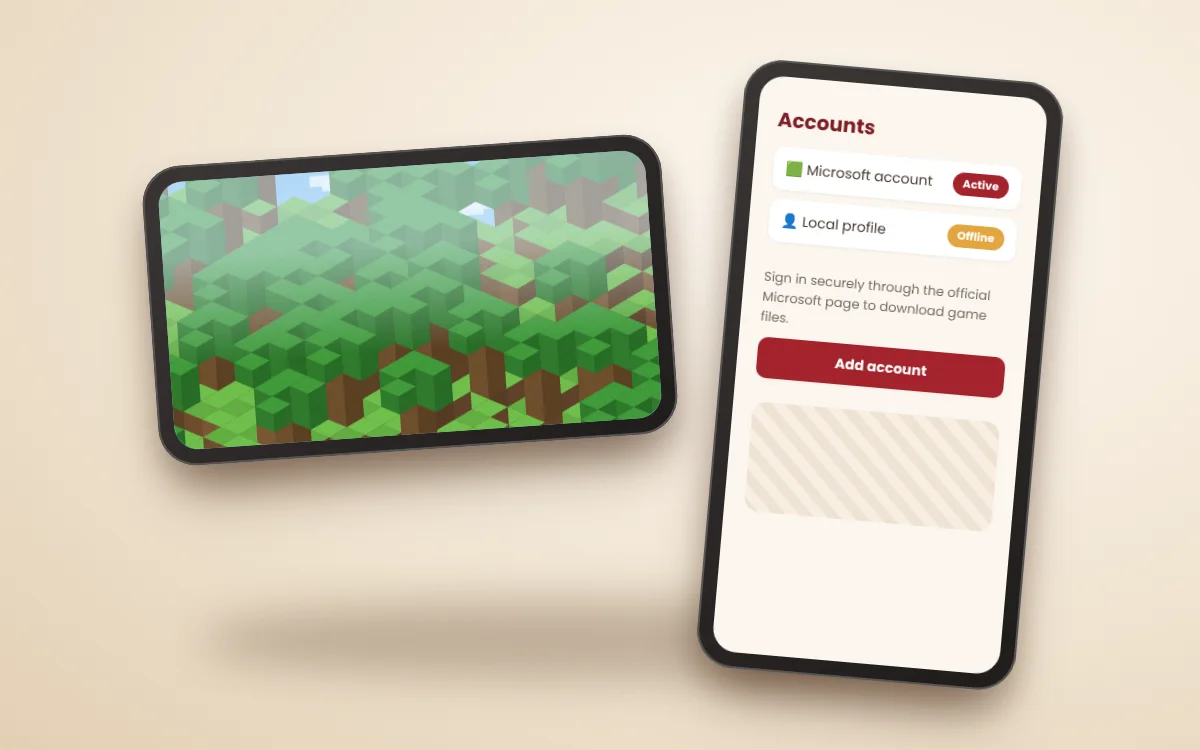
Signing in is the moment pojavlauncher turns from an empty shell into a working copy of Minecraft: Java Edition. The launcher uses your Microsoft account to confirm that you own the game, download the official files and connect to online services such as multiplayer servers, skins and Realms. This guide explains how the login process works, how to add and manage accounts, how local profiles differ, and how to resolve the sign-in errors players encounter most often.
Why pojavlauncher Needs a Microsoft Account
Since Mojang completed its migration from legacy Mojang accounts, every copy of Java Edition is tied to a Microsoft account. The official desktop launcher, third-party launchers and pojavlauncher all follow the same process: they ask Microsoft to confirm your identity, receive a token in return and use that token to prove ownership to Minecraft's services.
This has two practical consequences. First, pojavlauncher cannot provide the full game to someone who has not bought it. Second, your purchase works across devices: the same account that plays on a Windows PC can play on an Android phone without buying the game again.
How the Sign-in Process Works
When you add a Microsoft account, pojavlauncher opens Microsoft's own login page inside an embedded browser window. You type your email address, password and any two-step verification code on that page. The launcher never sees your password. Once Microsoft confirms your identity, it hands back an authorisation code, which pojavlauncher exchanges for the tokens needed by Xbox Live and Minecraft services.
The process involves several stages behind the scenes:
- Microsoft authentication confirms who you are.
- Xbox Live authentication links that identity to your Xbox profile.
- XSTS authorisation grants access to Minecraft's services.
- Minecraft authentication issues the game token and checks that you own Java Edition.
If any stage fails, the launcher displays an error that usually indicates which part of the chain needs attention, which makes troubleshooting far easier than it first appears.
Adding Your First Microsoft Account
- Open pojavlauncher and go to the account selector.
- Choose the option to add a Microsoft account.
- Enter your credentials on the Microsoft page that appears and complete any verification step.
- Wait for the launcher to finish the authentication chain. Your username and skin appear in the account list.
The whole procedure takes less than a minute on a stable connection. If you have not yet installed the launcher, our step-by-step guide on how to install pojavlauncher on Android covers everything up to this point.
Managing Several Accounts
pojavlauncher can store more than one account, which is useful for families sharing a tablet or for players who keep a separate account for testing. Each saved account keeps its own token, and you can switch between them from the account selector before starting the game. Removing an account from the launcher deletes the stored token from the device; it does not affect the account itself.
Tokens expire periodically for security reasons. The launcher refreshes them silently in most cases, but if a refresh fails you will be asked to sign in again. This is normal behaviour rather than a sign of a problem.
Local Accounts: What They Can and Cannot Do
A local account is an offline profile that exists only on your device. It does not verify ownership, so it cannot access online servers that enforce authentication, cannot download official skins and cannot use Realms. Recent builds of pojavlauncher make this clear with a notice reminding users that Minecraft is a paid game.
Local accounts still have legitimate uses. Developers rely on them to test builds without repeatedly signing in, and players who own the game sometimes use one temporarily when Microsoft's services are unavailable. For ordinary play, however, a Microsoft account is the appropriate choice, both legally and practically.
Protecting Your Account
Because your account represents a paid licence, it deserves the same care as any other valuable login.
- Enable two-step verification on your Microsoft account. pojavlauncher's sign-in page supports authenticator apps and SMS codes.
- Use only official builds of the launcher. A modified APK could, in theory, present a fake login page. The official build always uses Microsoft's genuine page.
- Check the address shown in the login window. It should belong to a Microsoft domain such as login.live.com.
- Remove accounts from devices you no longer use, and sign out of all sessions from your Microsoft security settings if a device is lost.
Common Sign-in Errors and Their Solutions
"This account does not own Minecraft"
The account you signed in with does not have Java Edition attached. This often happens when someone owns Bedrock Edition only, or bought the game on a different Microsoft account. Check your purchases on the official Minecraft website. Owners of the Java & Bedrock bundle will find Java Edition included.
Xbox profile missing
Some new accounts have never created an Xbox profile, which interrupts the chain at the Xbox Live stage. Sign in once at the official Xbox or Minecraft website to create a profile, then retry in the launcher.
Child account restrictions
Accounts belonging to users under 18 may be part of a Microsoft family group. If the family settings do not permit multiplayer or third-party sign-in, the XSTS stage fails. A parent or guardian can adjust these settings through Microsoft's family safety dashboard.
Login window stays blank
The embedded browser relies on Android System WebView. Update Android System WebView and Google Chrome through the Play Store, clear the launcher's cache and try again.
Repeated "token expired" prompts
An incorrect date or time setting on the device can invalidate tokens almost immediately. Enable automatic date and time in Android's settings.
Skins, Capes and Your Profile
When you sign in with a Microsoft account, the skin and cape assigned to your profile appear in game exactly as they do on a computer. pojavlauncher does not change skins itself; you manage them through the official Minecraft website or the desktop launcher, and the changes appear the next time you play on mobile.
Playing on Servers After Signing In
A verified account unlocks the multiplayer menu fully. You can add Java servers by address, join friends on a local network or use Realms if you subscribe. Keep in mind that server performance on a phone depends heavily on graphics settings and renderer choice. If you experience stuttering on busy servers, our guide to fixing pojavlauncher lag and low FPS explains which settings matter most, and our article on pojavlauncher RAM allocation helps prevent memory crashes in crowded areas.
Signing In on iPhone and iPad
The iOS build of pojavlauncher uses the same Microsoft authentication flow. The only notable difference is that the login page opens in a system web view supplied by iOS. If you are setting up an Apple device, our dedicated guide to running pojavlauncher on iOS covers sideloading and JIT before you reach the sign-in stage.
Frequently Overlooked Details
- Signing in requires an internet connection, but once the game files are downloaded you can play single-player worlds offline until the token needs refreshing.
- Changing your Microsoft password signs out existing sessions. Expect to sign in again in pojavlauncher afterwards.
- Using the same account on a computer and a phone simultaneously is possible for single-player, but a server will only accept one active session per account.
Switching Between Devices
Many players use pojavlauncher on more than one device, such as a phone for travel and a tablet at home. Your Microsoft account can be signed in on each device at the same time, and your licence covers all of them. Single-player worlds, however, are stored locally on each device, so they do not synchronise automatically. To continue a world on another device, copy its folder from the saves directory using cloud storage or a cable.
Privacy and Data Stored on the Device
pojavlauncher keeps only what it needs to start the game: your username, your profile identifier and the access tokens issued by Microsoft. These are stored in the app's private data area, which other apps cannot read on a standard Android device. Uninstalling the launcher removes this data entirely. If you share a device with others, remove your account from the launcher after playing, so that the next person cannot start the game with your profile.
Conclusion
The Microsoft login in pojavlauncher is designed to be secure and familiar. You enter your credentials only on Microsoft's own page, the launcher stores a token rather than a password, and ownership of Java Edition is confirmed through the same services the desktop client uses. Understanding the chain of authentication stages makes errors far less mysterious: most failures come from a missing Xbox profile, family restrictions, an outdated web view or an incorrect clock. Resolve those, and your account will carry your Java Edition licence smoothly from desktop to mobile.