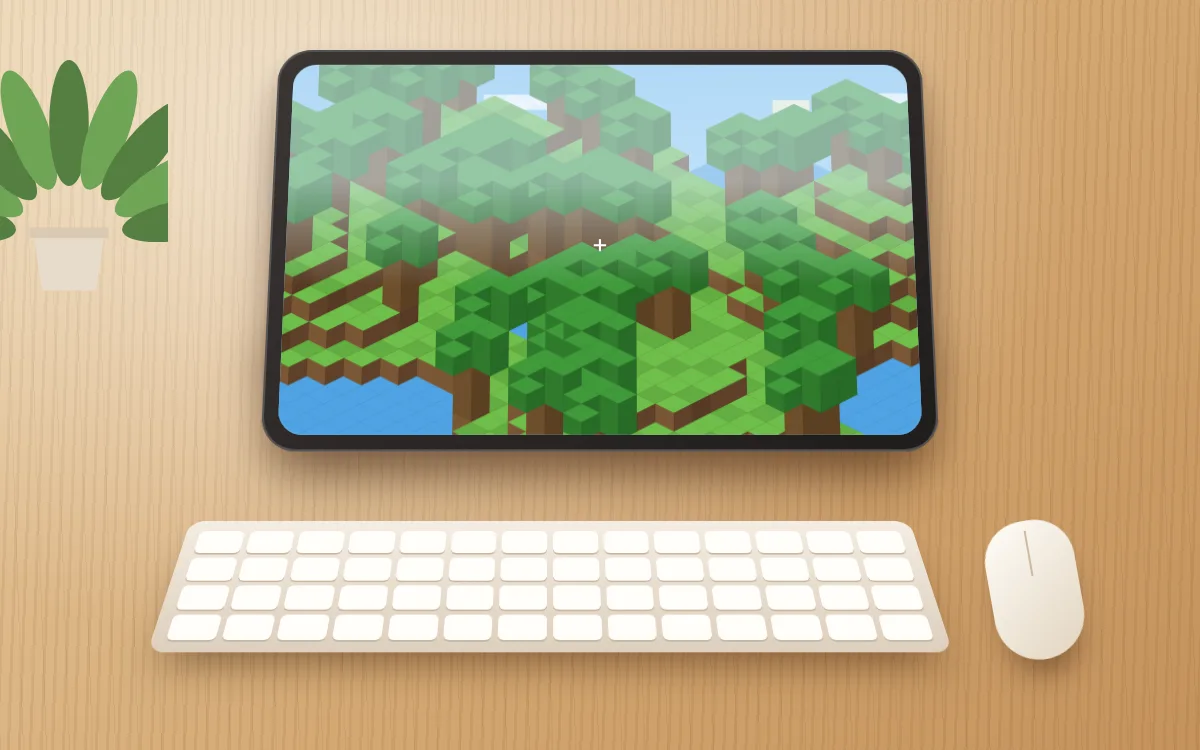
Touch controls make Java Edition portable, but nothing matches the precision of a keyboard and mouse for building, combat and inventory management. pojavlauncher supports physical input devices on Android, turning a tablet or a phone with a stand into something close to a desktop setup. This guide explains which devices work, how to connect them, how pointer capture behaves and how to resolve the issues players encounter most often.
Why Use a Keyboard and Mouse?
Java Edition was designed around a keyboard and mouse. Many actions that require several on-screen buttons become a single keystroke, and camera control with a mouse is far more precise than dragging a finger across glass. For players who build detailed structures, take part in player-versus-player combat or manage complex inventories, physical input transforms the experience.
- Precision: accurate aiming and block placement.
- Speed: hotkeys for hotbar slots, dropping items and opening menus.
- Screen space: no on-screen buttons covering the game world.
- Comfort: long sessions without hand strain from holding a phone.
What Hardware Works
pojavlauncher accepts input from devices that Android itself recognises:
- Bluetooth keyboards and mice: the most convenient option for tablets and phones.
- USB keyboards and mice: connected directly with a USB-C hub or an OTG adapter.
- Wireless sets with a USB receiver: work through the same hub or adapter.
- Keyboard cases and folio keyboards: common for tablets and usually recognised as standard keyboards.
- Game controllers: supported as an alternative input method on recent builds.
Most standard devices work without special drivers. Gaming mice with very high polling rates also work, although extra features such as programmable buttons may require configuration on a computer first.
Connecting a Bluetooth Keyboard and Mouse
- Put the keyboard or mouse into pairing mode, usually by holding its connect button until a light flashes.
- Open Android Settings, then Connected devices or Bluetooth.
- Select the device from the list of available devices and confirm any pairing code.
- Open pojavlauncher and launch your profile. The launcher detects the input devices automatically.
For USB devices, connect them through an OTG adapter or a USB-C hub before launching the game. Many hubs also provide a charging port, which allows long sessions without draining the battery, although charging while playing adds heat.
Pointer Capture: How the Mouse Behaves
In a desktop game, the mouse pointer disappears during gameplay and mouse movement turns the camera. pojavlauncher reproduces this through Android's pointer capture feature. When the game world is active, the launcher captures the mouse, hiding the Android pointer and passing raw movement to the game. When you open the inventory or a menu, the pointer is released so that you can select items normally.
Recent releases have improved mouse capture considerably, fixing cases where the pointer escaped the game window or failed to return after opening a menu. If you notice capture problems, updating to the latest build from the official repository is the first step.
Hiding On-Screen Controls
With a keyboard and mouse connected, the touch buttons become unnecessary. You can hide them through the pojavlauncher in-game menu or create an empty control layout to use whenever physical devices are connected. Our guide to pojavlauncher custom controls explains how to create and switch layouts.
Adjusting Mouse Sensitivity
Mouse sensitivity is controlled in two places. The launcher's settings include a mouse speed option that scales raw input, and Minecraft's own Controls menu has a sensitivity slider. Start with the launcher value at its default and adjust the in-game slider until camera movement feels natural. If the camera still feels too fast or slow at the extremes of the slider, adjust the launcher setting.
Turning off any pointer acceleration in Android's developer or accessibility settings can also make aiming more consistent.
Keyboard Layout and Special Keys
pojavlauncher passes key presses to the game in the same way as a desktop operating system. Standard keys work immediately, but a few points are worth noting:
- Function keys: some compact keyboards require a modifier key for F1 to F12. Hold the keyboard's Fn key with the number key to access debug functions such as F3.
- Non-English layouts: if keys produce unexpected characters, check the physical keyboard layout in Android's language and input settings.
- System shortcuts: some Android shortcuts, such as those for switching apps, can interrupt the game. Avoid combinations that Android reserves for itself.
Setting Up a Comfortable Workstation
A keyboard and mouse change how you hold the device, so the physical arrangement matters.
- Place the tablet or phone on a stand at eye level to avoid neck strain.
- Use a mouse mat for smooth, consistent tracking.
- Keep the device cool with good airflow, since stands often place it close to a warm surface.
- Consider connecting the device to a monitor or television through USB-C display output, if your device supports it, for a full desktop experience.
Game Controllers as an Alternative
For relaxed play on a sofa, a Bluetooth game controller is an appealing middle ground. Recent builds of pojavlauncher map controller input to game actions, and mods such as Controlify add full controller support in modern versions, including on-screen keyboard and radial menus. Recent releases have fixed compatibility issues between Controlify and the newest game versions.
Troubleshooting Physical Input
The mouse moves the Android pointer instead of the camera
Return to the game window and select it with the mouse to trigger capture. If capture still fails, update pojavlauncher and Android System WebView, then restart the device.
Keyboard input lags or repeats
Bluetooth interference can cause delays. Move the keyboard closer to the device, remove other Bluetooth connections you are not using, or switch to a USB connection.
Some keys do nothing
Check the in-game control bindings. A key that Android intercepts, such as a dedicated media key, may not reach the game. Rebind the action to another key.
Mouse buttons are reversed
Check Android's mouse settings for a primary button option and the mouse's own configuration software.
Performance Considerations
Precise controls highlight any frame rate problems, because uneven camera movement becomes far more noticeable with a mouse. Make sure your setup is tuned with the right renderer and settings. Our guides to fixing lag and low FPS and choosing the best pojavlauncher renderer will help you achieve the steady frame rate that a mouse deserves.
Recommended Key Bindings for Mobile Setups
The default Java Edition bindings work well, but a few changes suit a mobile workstation, particularly on compact keyboards.
- Bind sprint to a key near the movement keys, such as Left Ctrl or Caps Lock, rather than relying on double-pressing W.
- If your keyboard lacks a dedicated F3 key, bind the debug screen to a spare key through a control layout button or a mod that supports custom debug bindings.
- Use the mouse's side buttons, if available, for pick block or for switching hotbar slots.
- Assign the perspective toggle to a key that is easy to reach, which is helpful when building.
Keeping bindings close to the desktop defaults has another benefit: if you also play on a computer, your muscle memory will transfer between the two without confusion.
Choosing a Keyboard and Mouse for Mobile Play
Almost any Bluetooth keyboard and mouse will work, but a few qualities make a noticeable difference. Multi-device keyboards that switch between a phone, tablet and computer with a single key are convenient for players who move between devices. Compact keyboards with a 75 per cent layout save space on a desk or a train table while retaining function keys. For the mouse, a model with a comfortable shape and a sensor that works on a variety of surfaces matters more than extreme sensitivity figures. Battery life is also worth considering, as recharging peripherals mid-session is an interruption most players would prefer to avoid.
Switching Between Touch and Physical Input
Many players move between a desk setup and handheld play during the same day. pojavlauncher handles this gracefully: disconnecting the mouse returns control to the touchscreen, and reconnecting it restores pointer capture. Keeping two control layouts, one full touch layout and one nearly empty layout for keyboard play, makes these transitions immediate. Select the appropriate layout from the in-game menu whenever your setup changes, and you will always have the right controls on screen.
Conclusion
Connecting a keyboard and mouse to pojavlauncher is one of the most rewarding upgrades for Java Edition on Android. Pair the devices through Bluetooth or USB, let the launcher capture the pointer, hide the touch controls and tune sensitivity in both the launcher and the game. Add a stand and a cool, comfortable workspace, and a tablet becomes a genuinely capable platform for building, exploring and competing in the full desktop edition of Minecraft.