
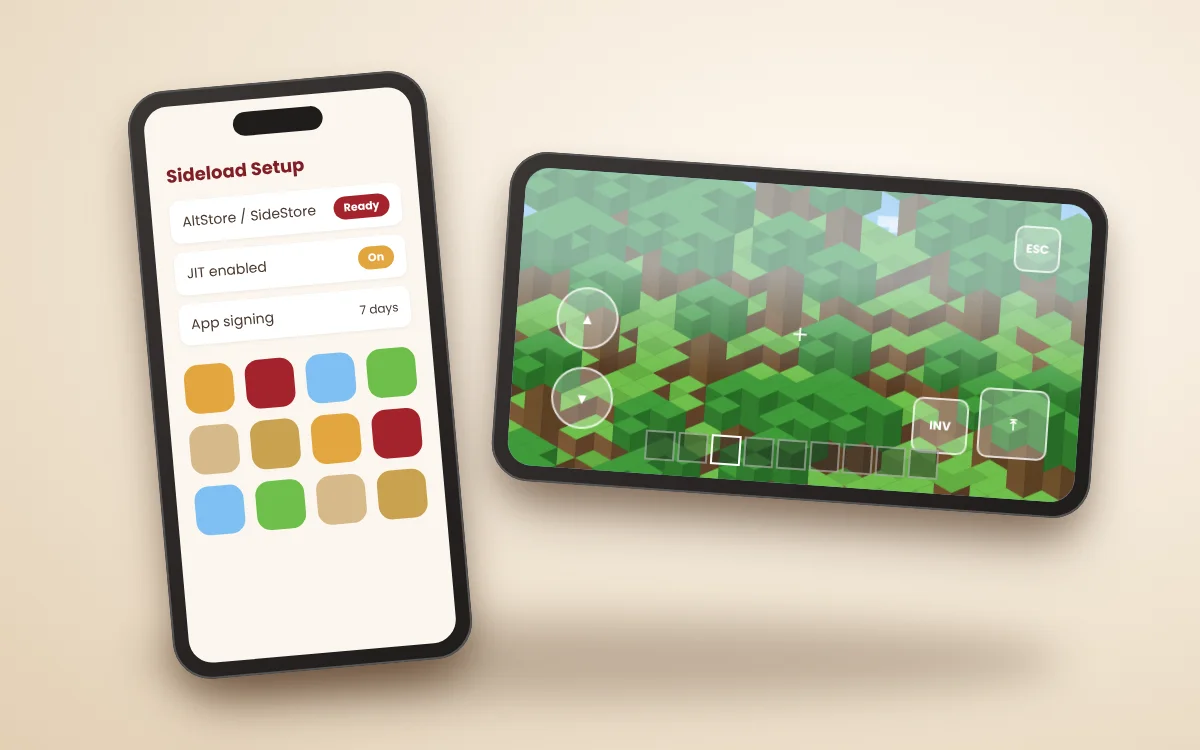
pojavlauncher is best known on Android, but a dedicated build brings Minecraft: Java Edition to iPhone and iPad as well. Running it on Apple devices involves a few extra steps, because iOS does not allow apps outside the App Store to install freely and restricts the just-in-time compilation that Java relies on for good performance. This guide explains why those steps exist, how sideloading and JIT work, and how to set up the iOS build for a smooth experience.
Why pojavlauncher Is Not on the App Store
Apple's App Store rules restrict apps that download and execute code not reviewed by Apple. A launcher that downloads the Java Edition client, mod loaders and mods at runtime falls outside those rules. In addition, high-performance Java requires just-in-time (JIT) compilation, which iOS normally reserves for Apple's own components. For these reasons, the iOS build is distributed outside the App Store and installed through sideloading.
The iOS work has been carried forward in recent years by contributors under the Amethyst name, which continues the PojavLauncher iOS codebase. The installation principles described here apply to both.
What You Need
- A compatible device: an iPhone or iPad with an A12 chip or newer is advisable, with A14 and later delivering noticeably better results. Devices with 4 GB of RAM or more handle modern versions far better.
- A supported iOS version: iOS 14 or later is a practical baseline, with iOS 16 and newer offering the best compatibility with current sideloading tools.
- A sideloading tool: AltStore or SideStore for most users, or TrollStore on supported iOS versions.
- A computer: required for the initial AltStore or SideStore setup.
- A Microsoft account that owns Minecraft: Java Edition.
Understanding Sideloading Options
AltStore
AltStore installs apps signed with your own Apple ID. A free Apple ID allows apps to run for seven days before they must be refreshed, which AltStore can do automatically when your device and computer share a Wi-Fi network. It is the most widely used and well-documented option.
SideStore
SideStore is a variant of AltStore that can refresh apps directly on the device after initial setup, without needing a computer running in the background. This is more convenient for everyday use.
TrollStore
On specific iOS versions, TrollStore installs apps permanently without the seven-day limit and can enable JIT more easily. It only works on certain iOS releases, so check its official compatibility list before relying on it.
Paid developer certificates
A paid Apple Developer account extends signing to a year. This suits developers who already hold an account but is unnecessary for most players.
Installing with AltStore or SideStore
- Install AltServer on your Windows or macOS computer from the official AltStore website.
- Connect your iPhone or iPad with a cable and use AltServer to install AltStore (or follow SideStore's own setup process).
- On the device, trust your developer profile under Settings > General > VPN & Device Management.
- Enable Developer Mode under Settings > Privacy & Security on iOS 16 and later, then restart when prompted.
- Obtain the official iOS build (an IPA file) from the project's official repository.
- Open AltStore or SideStore, choose the option to add an app and select the IPA.
- Wait for signing and installation to finish. The launcher appears on your home screen.
Enabling JIT
Without JIT, Java runs in a slow interpreted mode, and the game becomes impractically sluggish. Enabling JIT is therefore essential.
- AltStore: with the device connected to the computer running AltServer, use the AltServer menu to enable JIT for the launcher, then start the app.
- SideStore: recent versions can enable JIT on the device using a pairing file and a local VPN tunnel, removing the need for a computer during each session.
- TrollStore: provides an option to open apps with JIT enabled.
- Dedicated JIT tools: on the newest iOS releases, community utilities can enable JIT directly on the device; follow the official documentation of whichever tool you choose.
JIT must usually be enabled each time the app is opened, so it is worth choosing the method that fits your routine.
Signing In and Creating a Profile
Once installed and running with JIT, the iOS build behaves much like the Android version. Add your Microsoft account through the official Microsoft sign-in page, create a profile, choose a version and allocate memory. The account process is identical to Android, as described in our guide to pojavlauncher Microsoft account login.
Memory Limits on iOS
iOS restricts how much memory a single app may use, and these limits are often lower than the device's total RAM would suggest. Exceeding them causes iOS to close the app immediately. Start with a conservative allocation, roughly a third to half of the device's RAM, and increase gradually. Devices with 6 GB or 8 GB of RAM, such as recent Pro models and M-series iPads, provide much more headroom. The principles in our guide to pojavlauncher RAM allocation apply here too.
Performance on Apple Devices
Apple's processors are powerful, and iPads with M-series chips can run modern versions with performance mods at high frame rates. Graphics on iOS are translated to Metal, Apple's graphics interface, through compatibility layers. Performance mods such as Sodium remain highly effective, and many of the general tips in our article on fixing lag and low FPS carry over unchanged.
- Keep render distance moderate, especially on iPhone.
- Disable Low Power Mode while playing.
- Close background apps to give the launcher more memory headroom.
- Cap the frame rate to limit heat on thinner devices.
Controls on iPhone and iPad
The iOS build includes customisable touch controls, and iPads work well with Apple's Magic Keyboard, Bluetooth mice and game controllers. A keyboard and mouse on an iPad Pro or iPad Air offers an experience very close to a desktop computer. Our guide to using a keyboard and mouse covers the principles of pointer capture, which apply on iPadOS too.
Keeping the App Signed
With a free Apple ID, the signature expires after seven days. When it expires, the app will not open until refreshed. AltStore refreshes apps automatically in the background when AltServer is reachable on the same network, while SideStore can refresh on the device. Set a reminder to refresh before a long trip, so that the app is not unavailable when you need it.
Troubleshooting on iOS
- App closes immediately: JIT is probably not enabled, or memory allocation is too high.
- "Unable to verify app": trust the developer profile in device settings and check your internet connection.
- App will not open after a week: the signature has expired; refresh it in AltStore or SideStore.
- Developer Mode option missing: it appears only after a sideloaded app has been installed at least once.
Choosing the Right Apple Device
Not every Apple device offers the same experience. Older iPhones with 3 GB of RAM can run classic versions such as 1.12.2 with care, but modern releases quickly reach iOS memory limits. Recent iPhone Pro models, with more memory and stronger graphics, handle current versions with performance mods comfortably. iPads with M-series chips are the most capable option of all, combining large screens, generous memory and excellent sustained performance, especially when paired with a keyboard and trackpad.
If you are considering which device to use, prioritise memory first, then the processor generation and finally screen size. A device with ample memory and a recent chip will remain capable through several future game updates, whereas a device with limited memory will struggle increasingly as Minecraft grows more demanding.
Backing Up Your Worlds on iOS
Because sideloaded apps can be removed if a signature lapses or a device is restored, regular backups are especially important on iOS. The launcher's game folder is accessible through the Files app, where you can copy the saves folder to iCloud Drive or another storage provider. Doing this weekly, or before updating the launcher or iOS itself, protects your worlds from being lost. The same folder is also where you place mods and resource packs, so the Files app becomes a useful tool for managing your entire setup without a computer.
Conclusion
Running pojavlauncher on iOS takes more preparation than on Android, but the result is the full Java Edition on an iPhone or iPad. Choose a sideloading method that suits you, enable Developer Mode, install the official build, enable JIT each session and allocate memory conservatively within iOS limits. On a modern iPad with a keyboard and mouse, the experience can rival a laptop. For Android users who want to compare the process, our guide on how to install pojavlauncher on Android sets out the simpler route available there.